EV Initiative / Homeowner · Resident with a private plug
Your charger. Ready to share.
Use the driver app to register, connect and manage your own charger. Start with a working private charging setup; open it to guests when the price, access and payout setup are ready.
Updated 2 October 2026
1. Get a network-ready charger
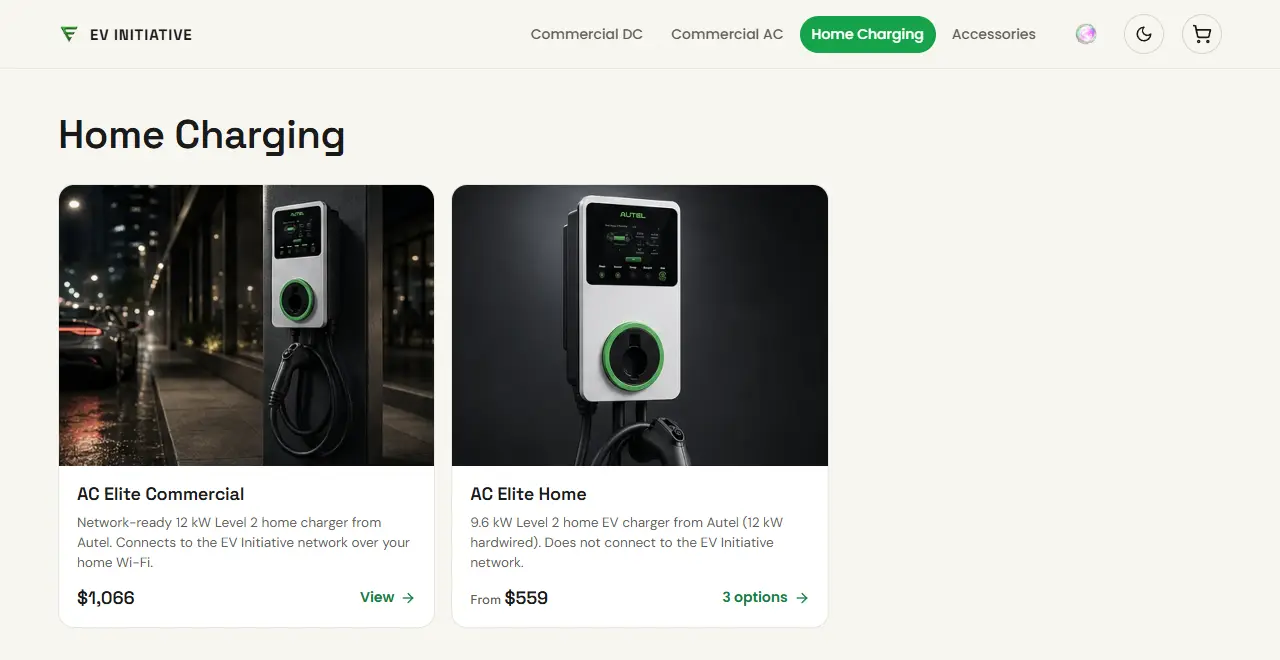
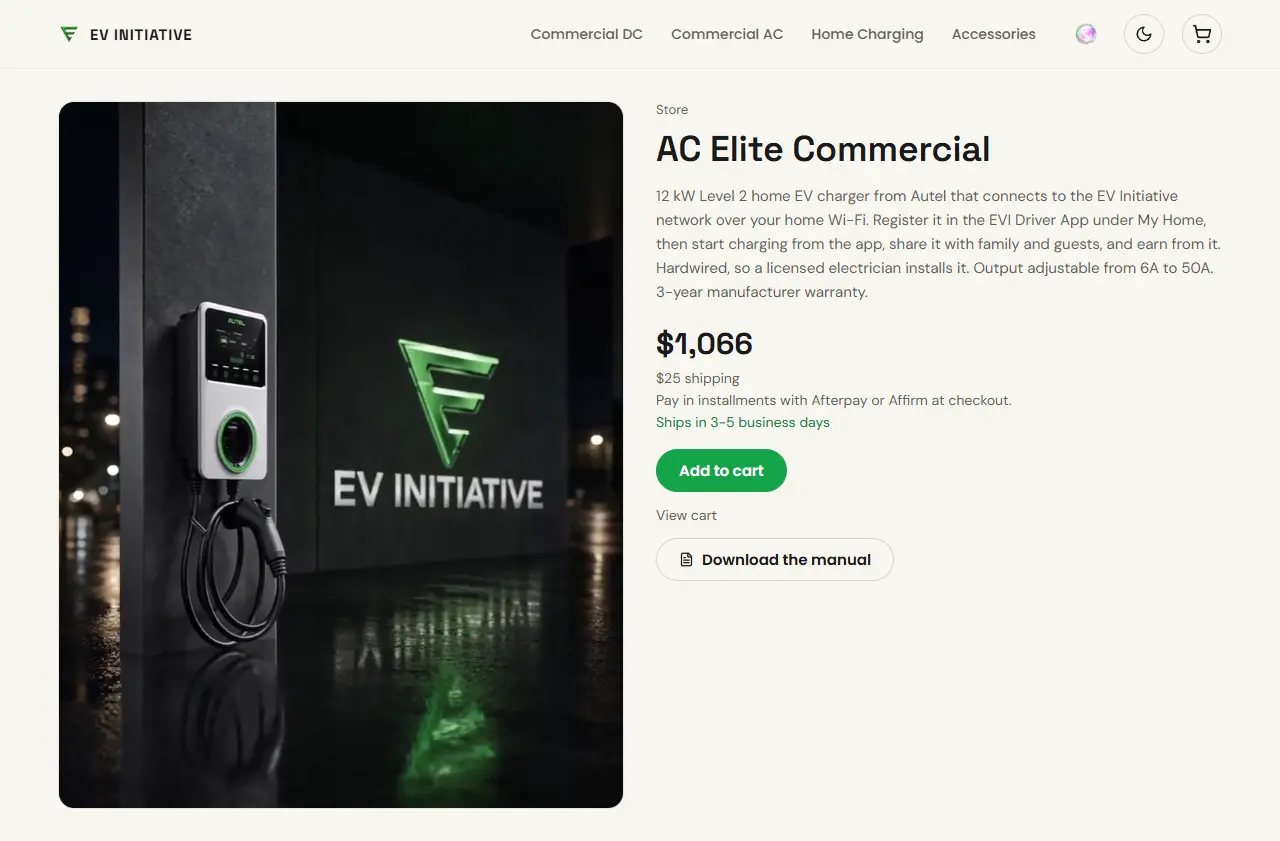
Home hosts need a network-ready charger: the AC Elite Commercial, listed under Home Charging on evinitiative.shop. In the cart it reads AC Elite Commercial 50A in-body holster, for home. Buy it there, not under Commercial AC. The home listing comes with the My Home setup steps; the commercial listing starts a commercial installation instead. The AC Elite Home does not connect to the EV Initiative network, so it never comes online in the app and cannot be shared with guests. The hardware purchase guide covers ordering and lead times.
Home Charging on the shop. The network-ready AC Elite Commercial comes first. The AC Elite Home does not connect to the EV Initiative network, and its card says so. From evinitiative.shop on 3 October 2026. Prices and lead times change; the shop shows current ones.The AC Elite Commercial’s page under Home Charging. It has one version, so there is nothing to choose before Add to cart. From evinitiative.shop on 3 October 2026. Prices and lead times change; the shop shows current ones.
The AC Elite Commercial is hardwired, so a licensed electrician installs it. Nobody programs it before it ships: you register it in My Home yourself, and My Home gives you the connection details to enter in the Autel app. You can register it before it is installed.
For a charger already on the EV Initiative network, keep its working settings unless EVI explicitly arranges a change.
A plug in a building has one extra dependency.
The building must permit resident-managed charging and have its electricity rate configured. Ask the building contact to resolve that setup; do not register the building’s charger as a separate detached home.
2. Register your charger, then connect it
Register first, connect second
Sign in to the driver app supplied for your rollout. If EVI already set up a charger for you, use the email EVI has on file.
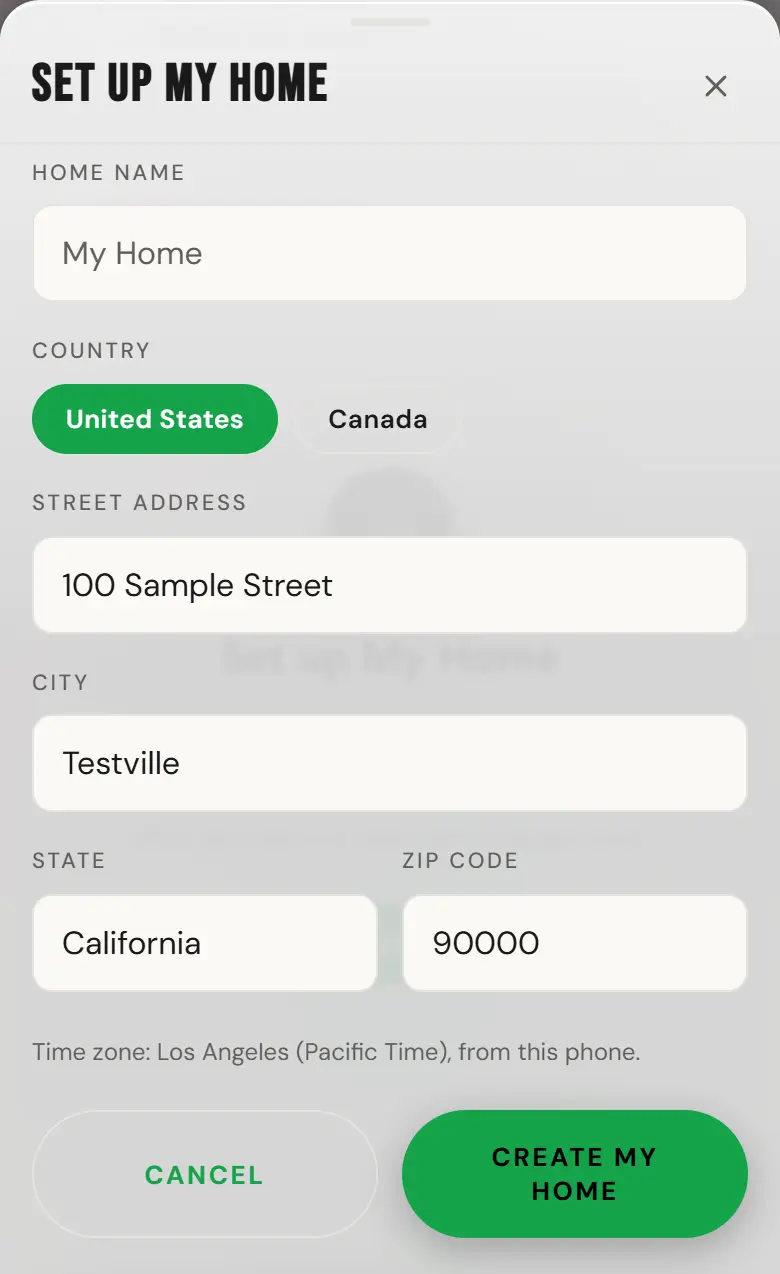
For a charger at your own home, open My Home. If it is empty, choose Set up My Home. Choose United States or Canada, enter your street address and city, pick your state from the list and type your ZIP code, 5 digits or ZIP+4. Select Create my home. The home name is optional.Set up My Home with United States chosen and the time zone taken from this phone. Sample screen with test data.Your home takes its time zone from your phone. If your phone’s time zone is different from your address, the form asks which one your home uses. Guest hours follow that time zone, and you can change it later in Home Settings. For a home in Canada, the Canadian guide covers the province and postal code.
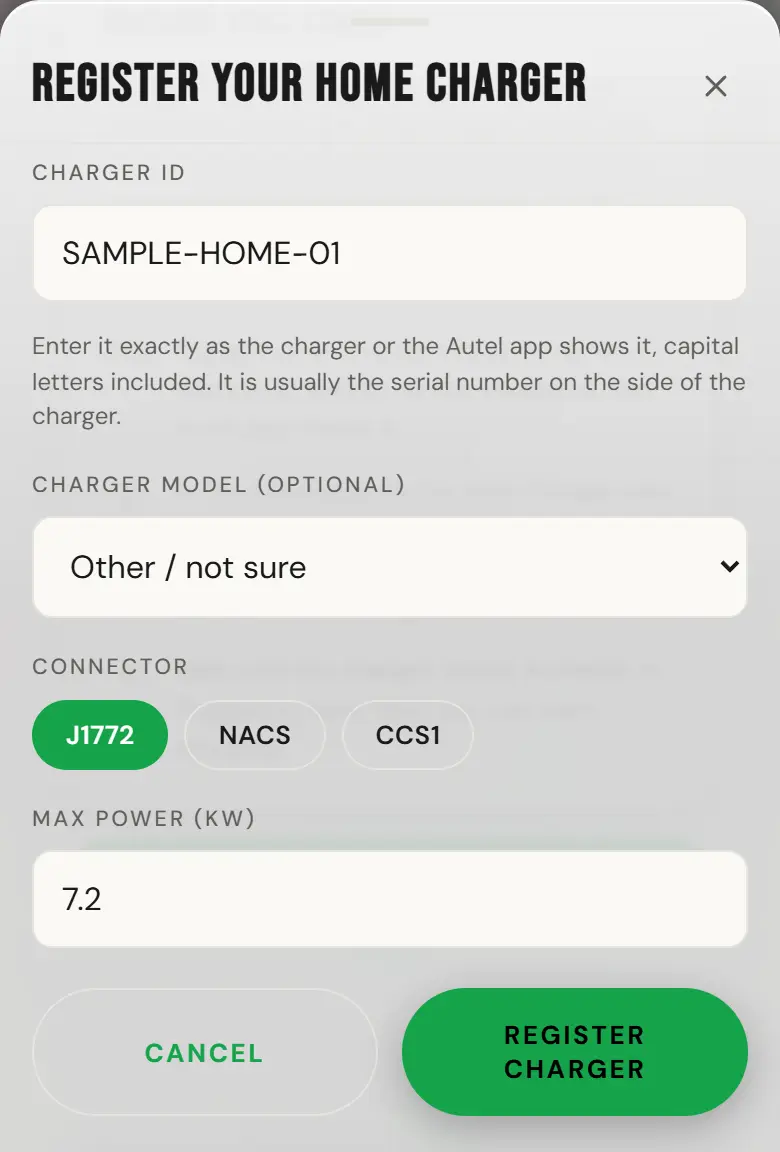
Choose Register my home charger. The charger does not need to be installed or online yet. Enter its Charger ID exactly as the charger or the Autel app shows it, capital letters included; it is usually the serial number on the side of the charger. Pick your Charger model if it is listed, choose the connector, enter the max power and select Register charger. Add a phone number if the app asks for one.The Register your home charger sheet, opened from My Home. Sample screen with test data.If the app says the charger is already registered, select Contact support and send the charger ID. Do not register it under a different ID.
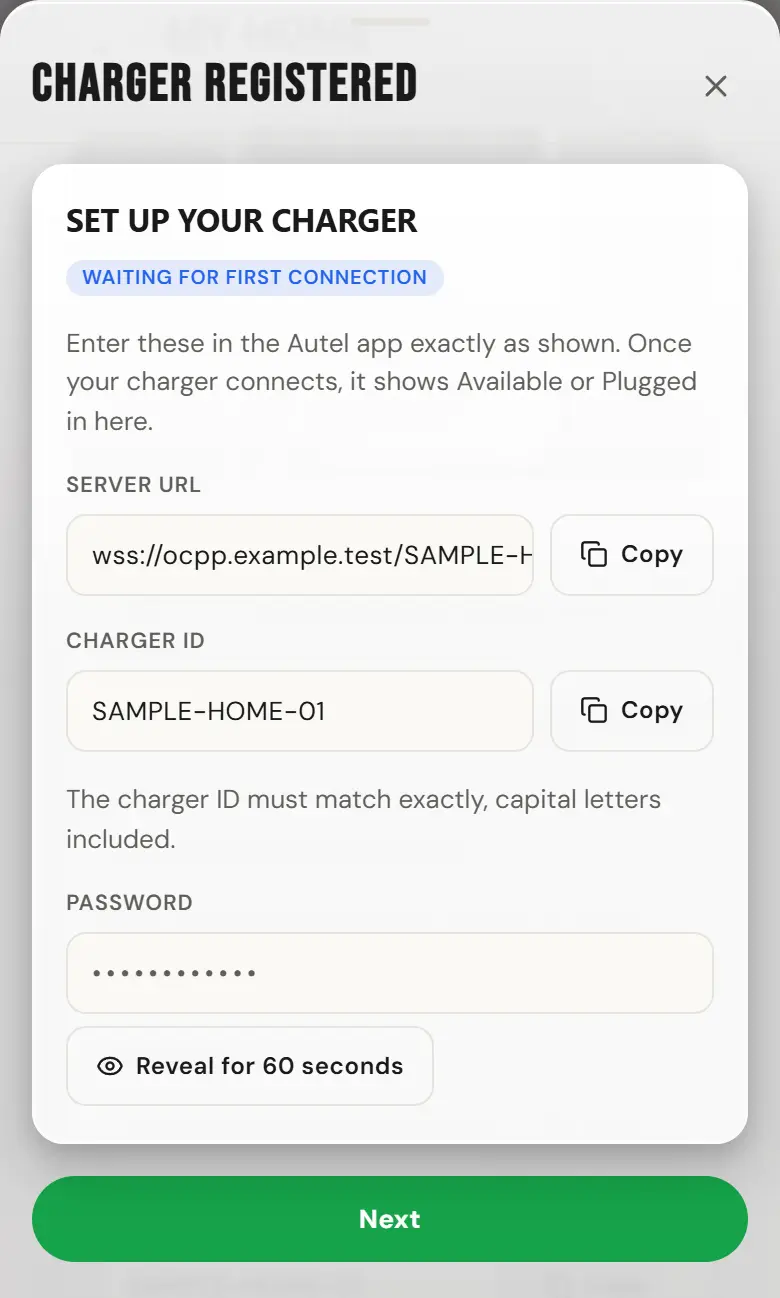
The sheet then shows Set up your charger: the Server URL and Charger ID, each with Copy, and the Password. The password stays hidden until you select Reveal for 60 seconds, and hides again after a minute. Do not share it. Select Next for the earning question, or close the sheet; the same details stay on My Home.The connection details right after registering, with the password hidden. Sample screen with test data.
For a plug in a multi-residential building that the building assigned to you, check it in My Chargers. To register your own plug there, join the building with its code first (Menu, then Account, then Join a building or fleet), then use Add a charger in My Chargers. The same Set up your charger card then shows there, and later on the charger’s page in My Chargers.
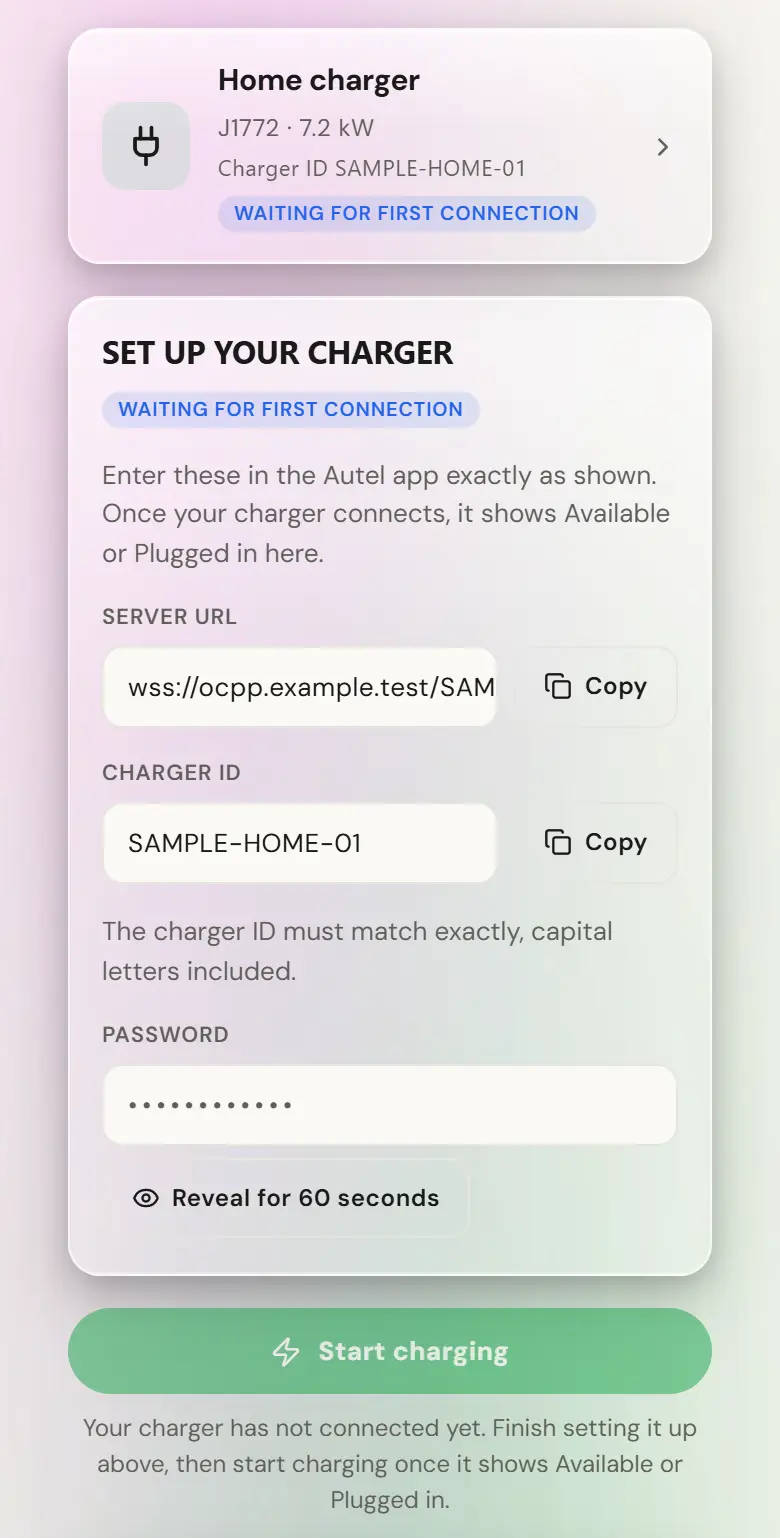
Once a licensed electrician has installed and powered the charger, open the Autel app at the charger. Pair with it over Bluetooth and join your home Wi-Fi, then enter the server URL, charger ID and password exactly as My Home shows them (for a building plug, the charger’s page in My Chargers). Until the charger connects, My Home shows Waiting for first connection and Start charging stays off.My Home before the first connection: the charger, the setup card, then Start charging, which stays off until the charger connects. Sample screen with test data.If the card says to leave the password blank, leave it blank in the Autel app. That setup stays open for 30 minutes after you register. If you registered before the charger was installed, let that setup close. Then select Open setup for 30 minutes only when you are at the powered charger, or enter the password My Home shows.
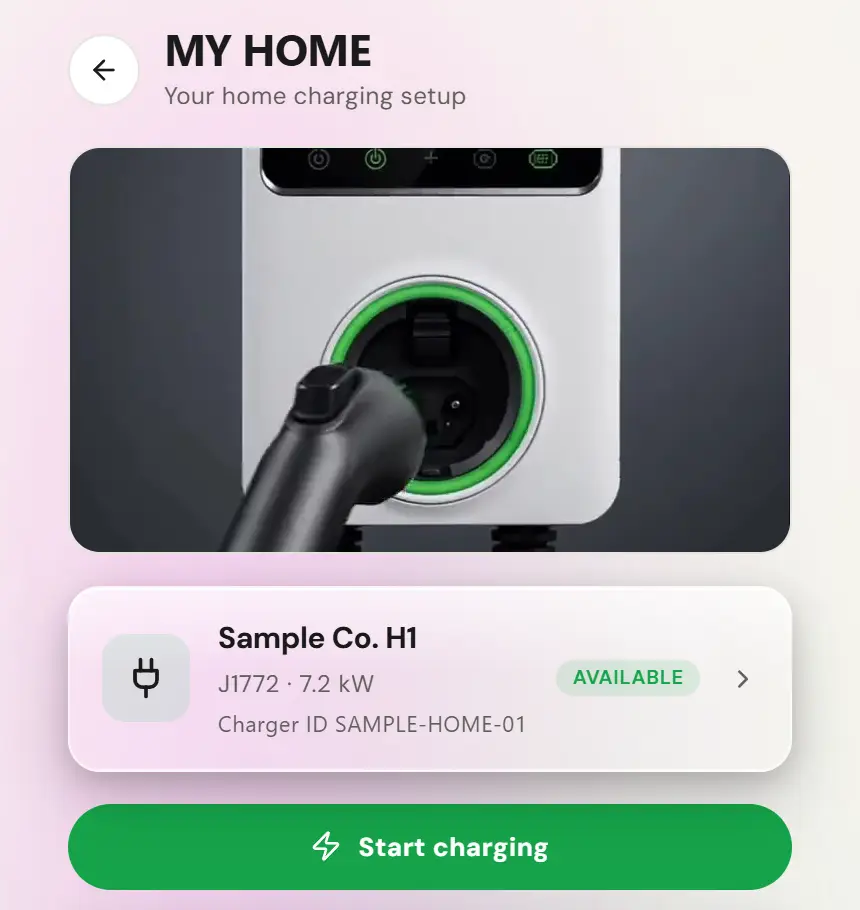
When My Home shows the charger as Available or Plugged in, confirm the charger name, charger ID and physical plug. The connection details then fold into a Connection details row lower on My Home, for a reset or a new router. In Home Settings, set your own electricity estimate if you want home charging cost estimates.My Home once the charger has connected, with its name, connector, power and charger ID. Sample screen with test data.
3. Set up guest charging
Price → Hours → Get paid
For an eligible home charger, open Earn from your charger. Review the Price step and the current host terms before continuing. Prices are in your home’s currency: US dollars for a home in the United States, Canadian dollars for a home in Canada.
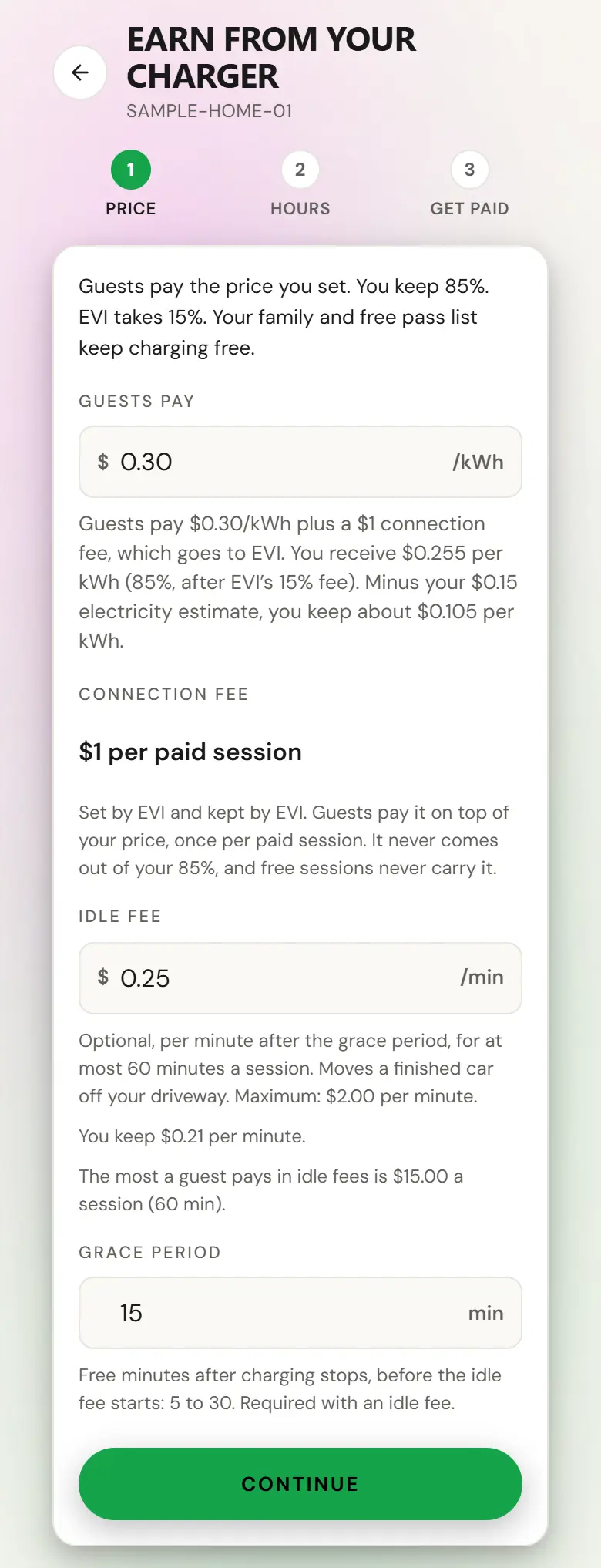
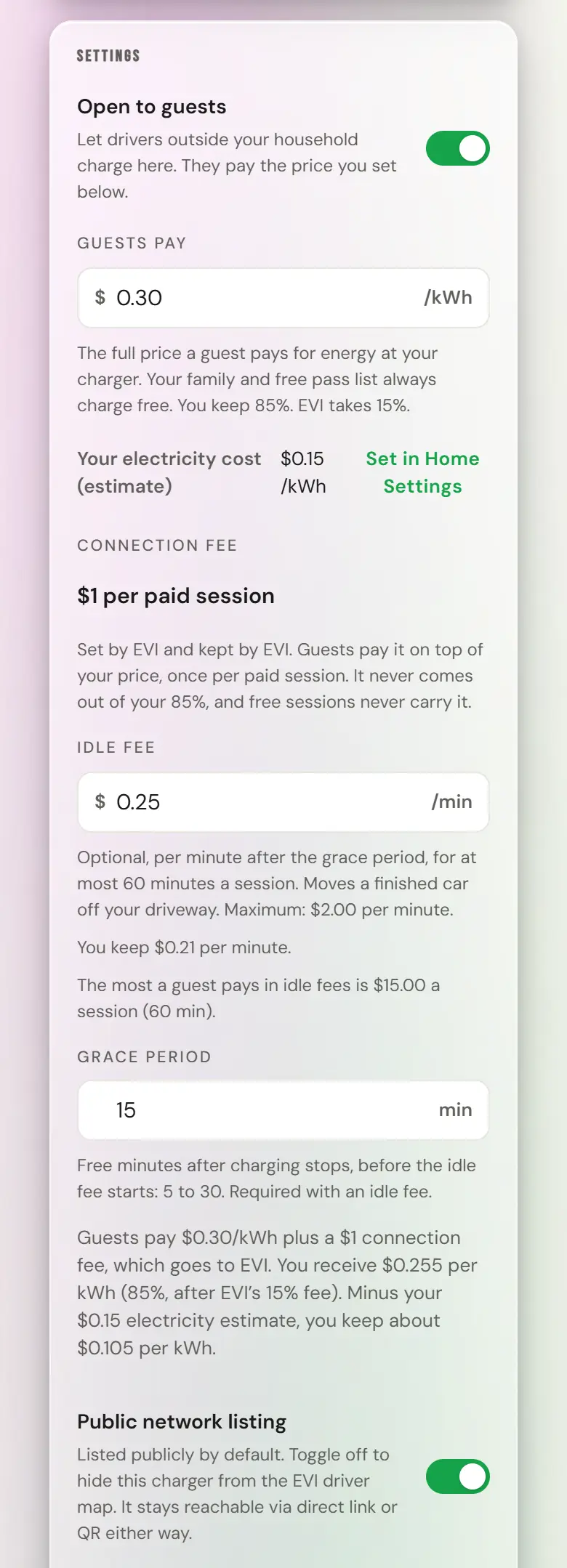
Set the guest price and review the driver’s displayed fees. If you add an idle fee, the maximum is $2 per minute (CA$2 in Canada); grace is required, 5 to 30 minutes, with 15 minutes as the default. Idle billing is limited to 60 minutes.Step 1, Price: the guest price, EVI’s connection fee, the idle fee and grace period, and what you keep. Sample screen with test data.
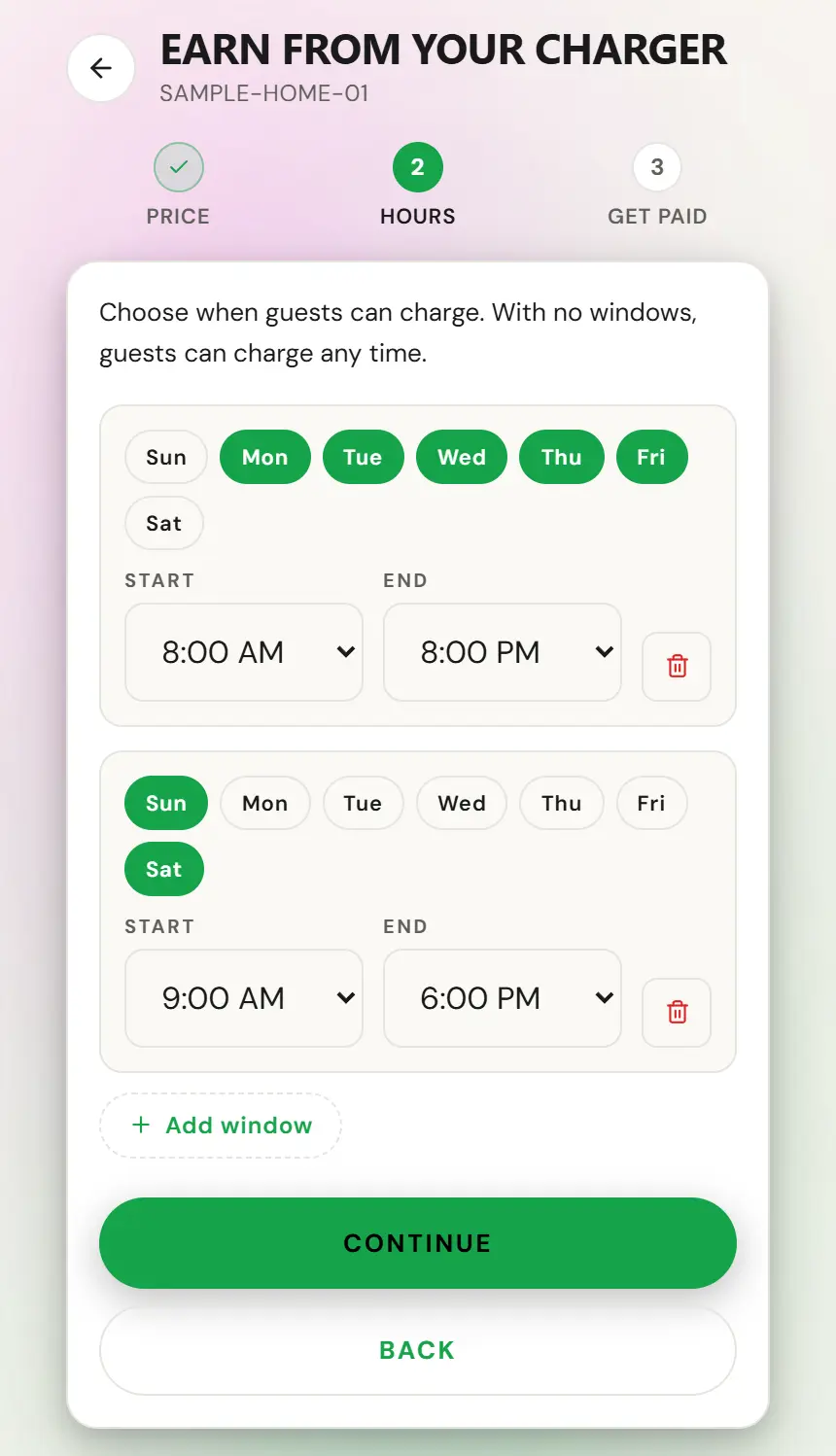
Choose guest Hours. No time windows means guests may charge at any time when guest access is open.Step 2, Hours, with two guest windows. Sample screen with test data.Guest hours follow your home’s time zone, the one set when you created My Home. To check or change it, open Home Settings and find Time zone. If it says no time zone is set, choose one there.
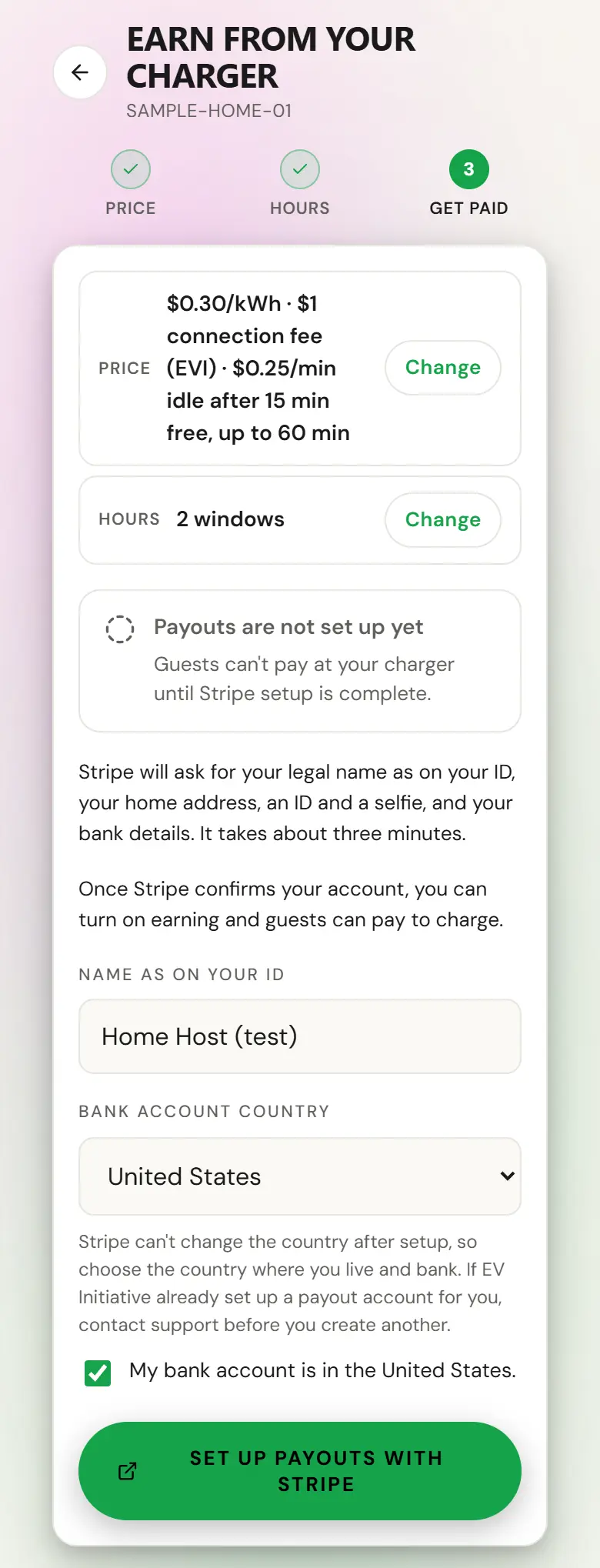
In Get paid, check Name as on your ID and choose your Bank account country, United States or Canada. Stripe can’t change the country after setup, so choose the country where you live and bank, then tick My bank account is in that country. If EVI already set up a payout account for you, contact support before you create another. Then choose Set up payouts with Stripe, complete the identity and bank details requested there, and return to the app. Guests can’t pay at your charger until Stripe setup is complete.Step 3, Get paid, with the bank account country chosen and confirmed. Sample screen with test data.
Once Stripe and the required acknowledgements are complete, select Turn on earning. Then switch on Open to guests when you are ready.
For a resident’s plug inside a building, paid guest charging is not available yet, so there is no guest price to set and Open to guests stays off. To let a neighbor or a visitor charge, add them to the charger’s Free pass list; they charge free. The home earning wizard is only for eligible home chargers.
4. Decide who can use the plug
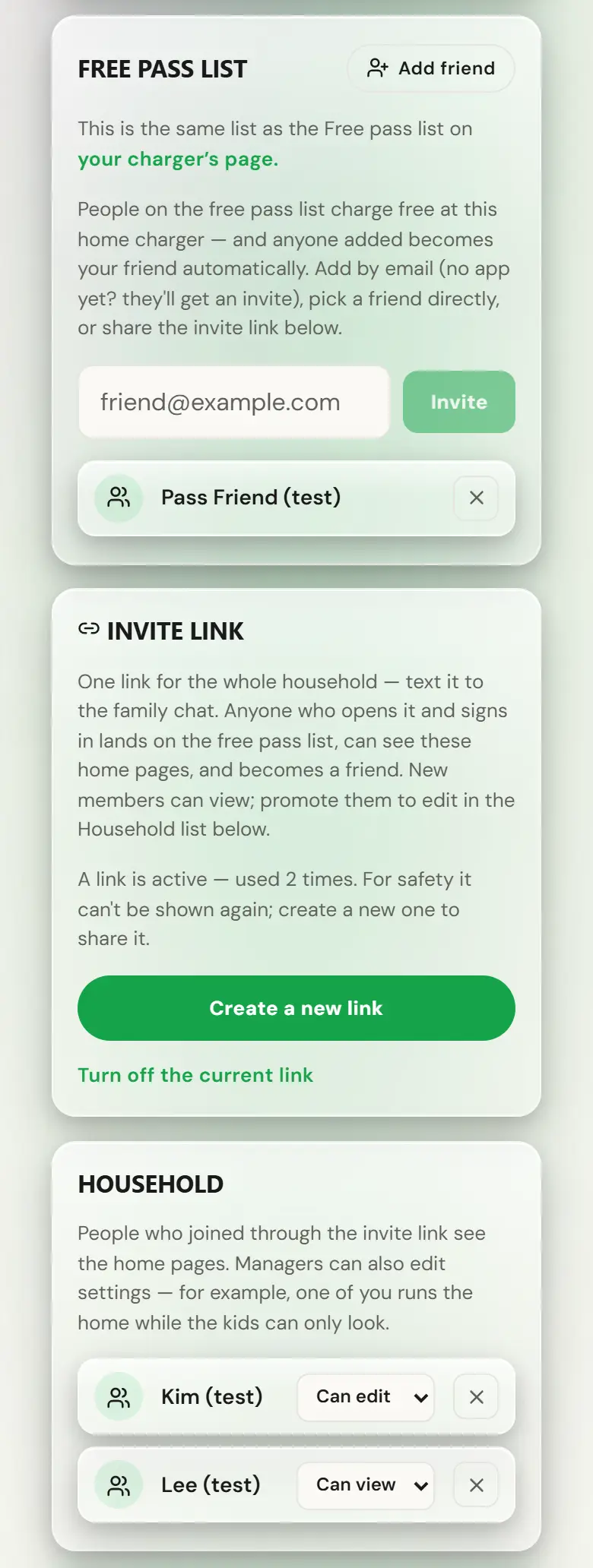
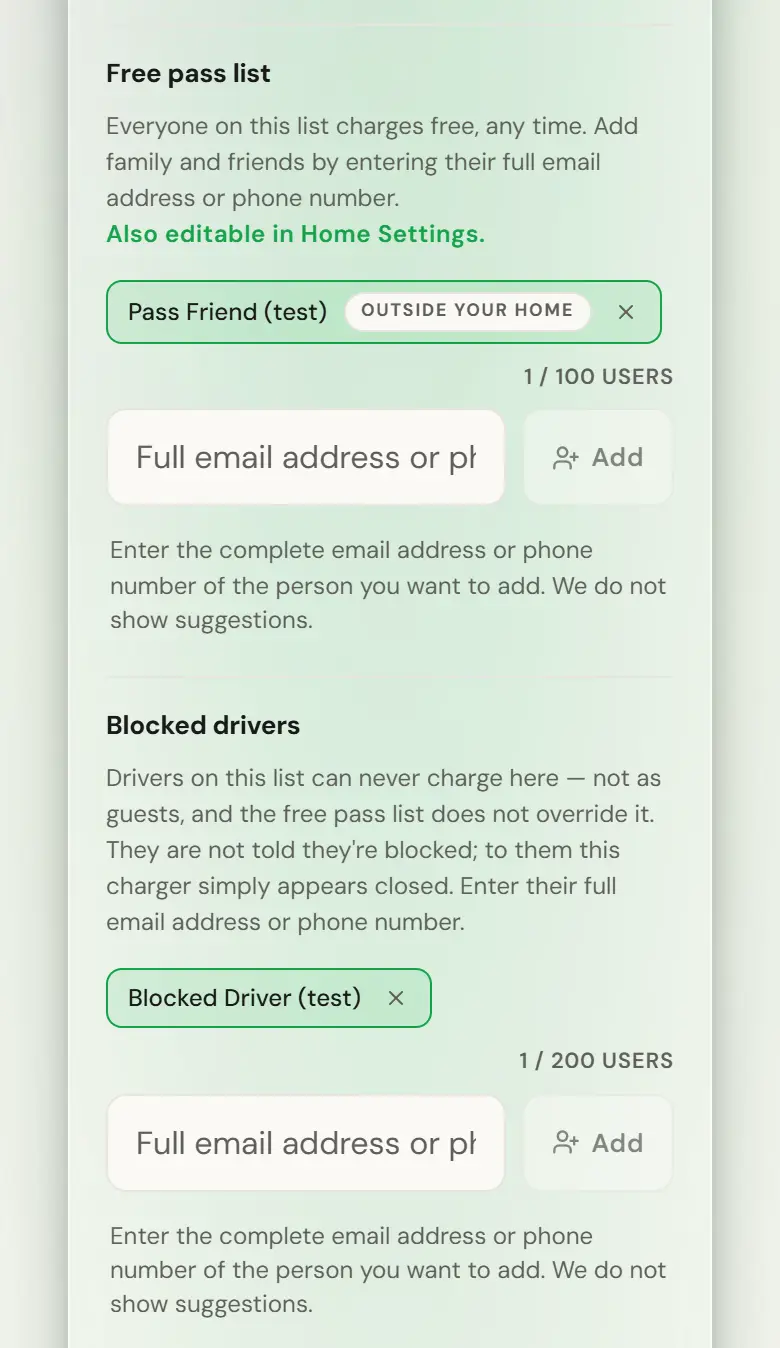
Review household membership and any free-pass or block lists available on your charger.Home Settings: the free pass list, the household invite link and the people in your household. Sample screen with test data.The charger page has the same free pass list and a blocked drivers list. Sample screen with test data.
Check Open to guests, guest hours and the public-listing setting independently. A hidden listing and a closed charger are different controls.The charger’s settings: Open to guests at the top and Public network listing at the bottom are separate switches. Sample screen with test data.
Share the driver-facing link or QR code with intended guests. Do not share your sign-in or the charger password My Home shows.
Keep guest parking instructions accurate. A map pin is not a parking reservation.
5. Test the experience and read earnings
Check both sides
Once My Home shows the charger as Available or Plugged in, complete your own charging session and check the charger ID, plug and finished session.
If opening to guests, have a separate permitted guest check the link, access hours and price before starting a session.
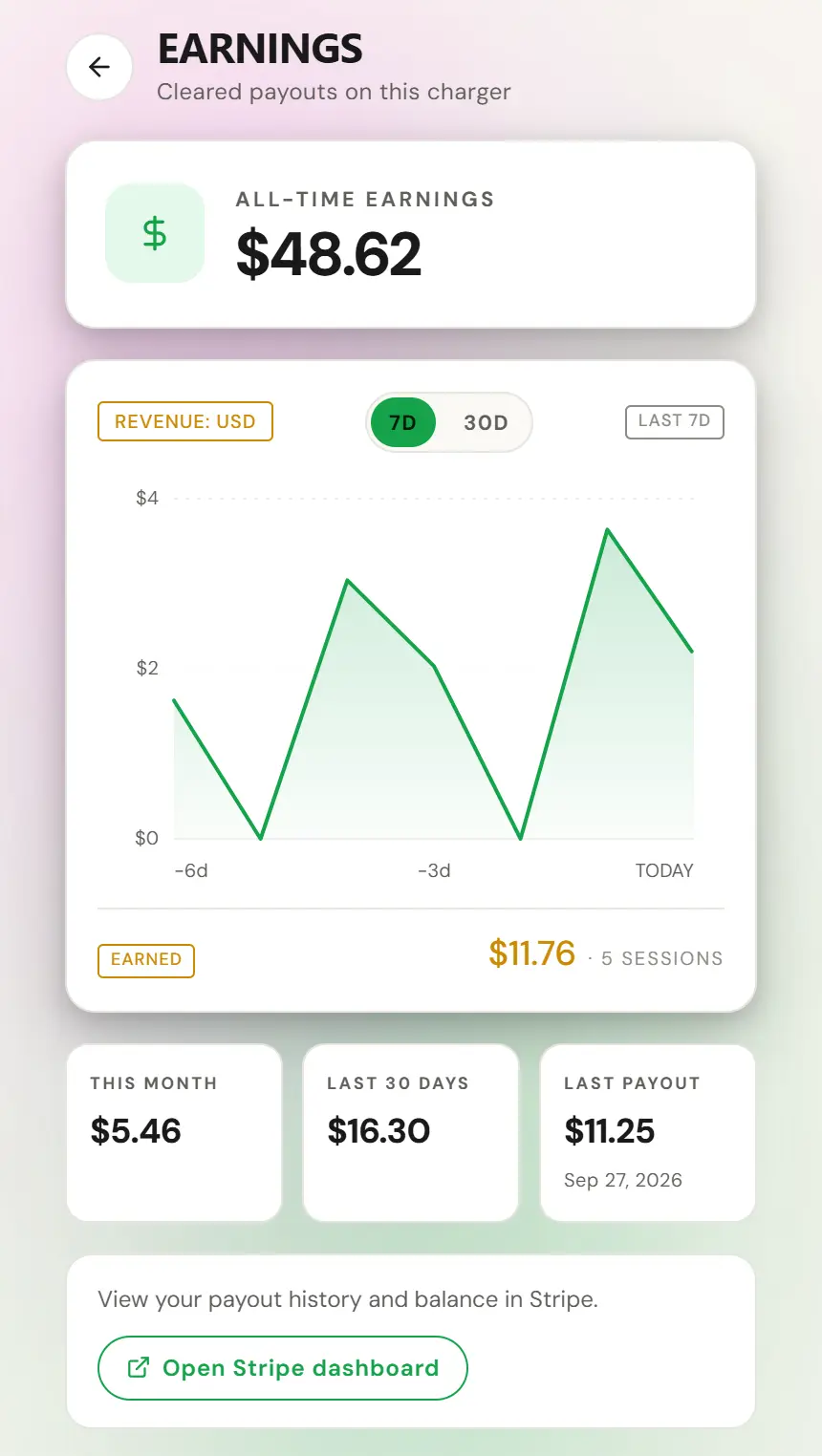
Open the charger’s Earnings view. It shows cleared payouts; use Open Stripe dashboard for payout history and bank transfers. Your electricity estimate and the per-kWh margin are in the charger’s settings, next to Guests pay. A margin estimate is not a bank deposit.The charger’s Earnings screen: cleared payouts and a link to Stripe. Sample screen with test data.
If your home is in Canada, continue with the Canadian guide for location and carbon-program checks.
Select Contact support and send the charger ID. EVI checks who registered it and can free a charger ID that was registered but never connected. Do not register the charger under a different ID.
My charger stays on Waiting for first connection
Check that the charger has power and is on your home Wi-Fi. In the Autel app, check that the server URL, charger ID and password match My Home exactly, capital letters included. For a building plug, check them against the charger’s page in My Chargers. If My Home said to leave the password blank and that setup has closed, select Open setup for 30 minutes when you are at the charger, or enter the password My Home shows.
My charger is an AC Elite Home
The AC Elite Home does not connect to the EV Initiative network, so it never comes online in the app. To start charging from the app, share your charger or earn from it, use the network-ready AC Elite Commercial listed under Home Charging.
Guest charging is unavailable
Check your Stripe state, guest-access setting and hours. Guests can’t pay until Stripe setup is complete. In a building, paid guest charging at a resident’s plug is not available yet, so guests can’t pay to charge there. Use the free pass list instead.
Send support@evinitiative.com the site name, charger identity, affected plug, time and time zone, and the error you see. Leave passwords, sign-in codes, card numbers and bank details out of the message. For damaged equipment or an electrical fault, stop using it and contact the responsible installer.
 EV INITIATIVE