 EV INITIATIVE
EV Initiative / Operator · Tenant Admin · Viewer
Set up the people behind the sites.
Bring each site onto the correct account, delegate the appropriate role, and make ownership, access and payment responsibilities explicit.
1. Confirm your operating boundary
Sign in to Admin and review Overview → Dashboard, Overview → Stations → Sites and Overview → Stations → Chargers. Confirm your tenant and assigned scope before making a change. An Operator handles permitted day-to-day work; a Tenant Admin controls additional account and delegation settings.
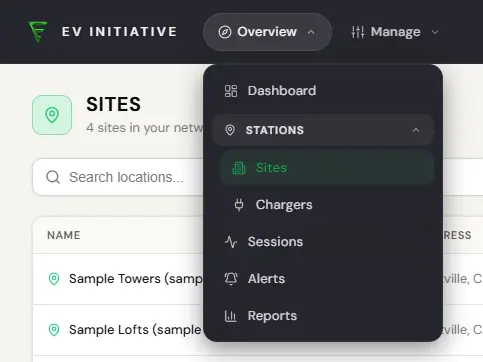
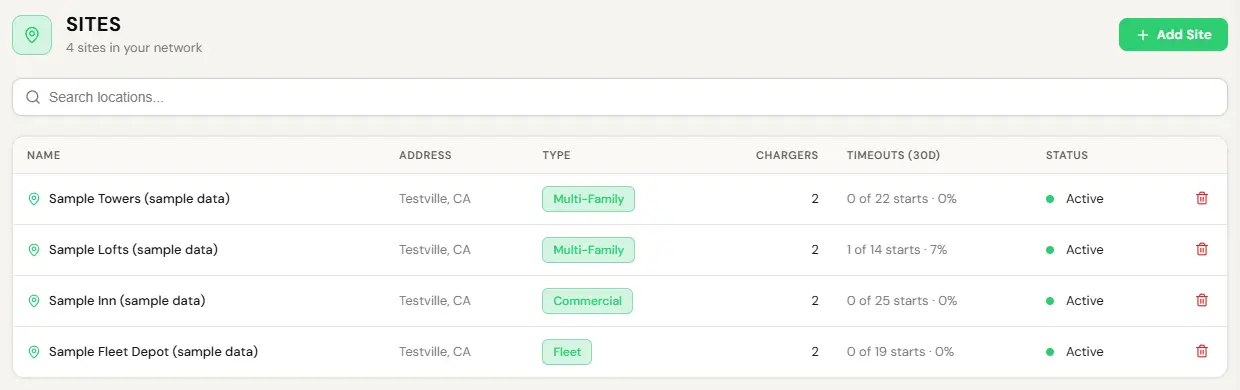
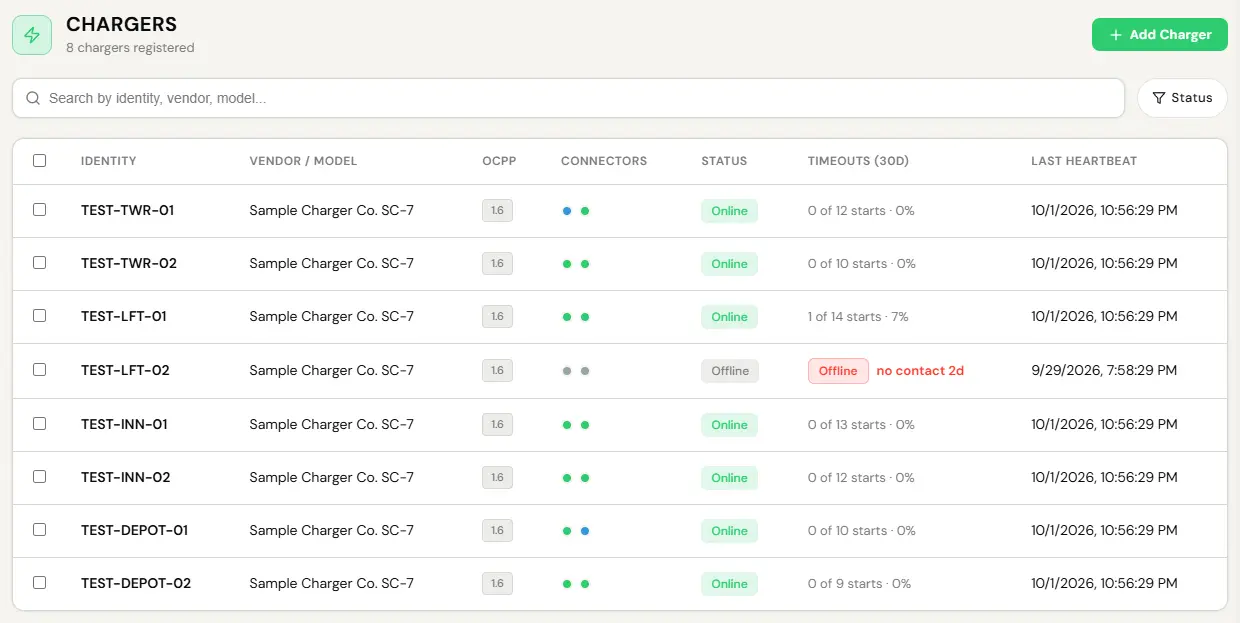
A person assigned the Building Admin, Property Manager or Charger Owner template follows the site-focused menu. Do not assume a business title such as “property manager” grants the full Operator permission set.
2. Invite the right person with the right role
Use your available team controls
- Agree whether the person operates the tenant, manages assigned sites, manages a fleet, installs hardware, or only needs to read reports.
- Use the available user/invitation controls to select the correct role and scope. If your account cannot grant it, ask the Tenant Admin or EVI.
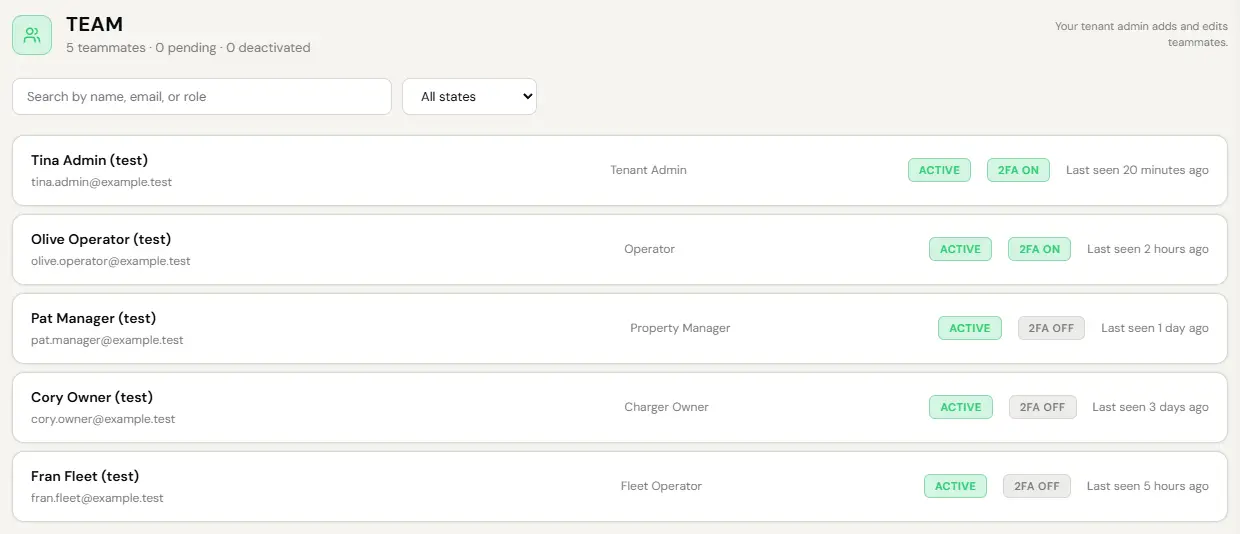
Manage → Users → Team as an Operator sees it. An account that cannot invite sees a note that the tenant admin adds and edits teammates. Sample screen with test data. 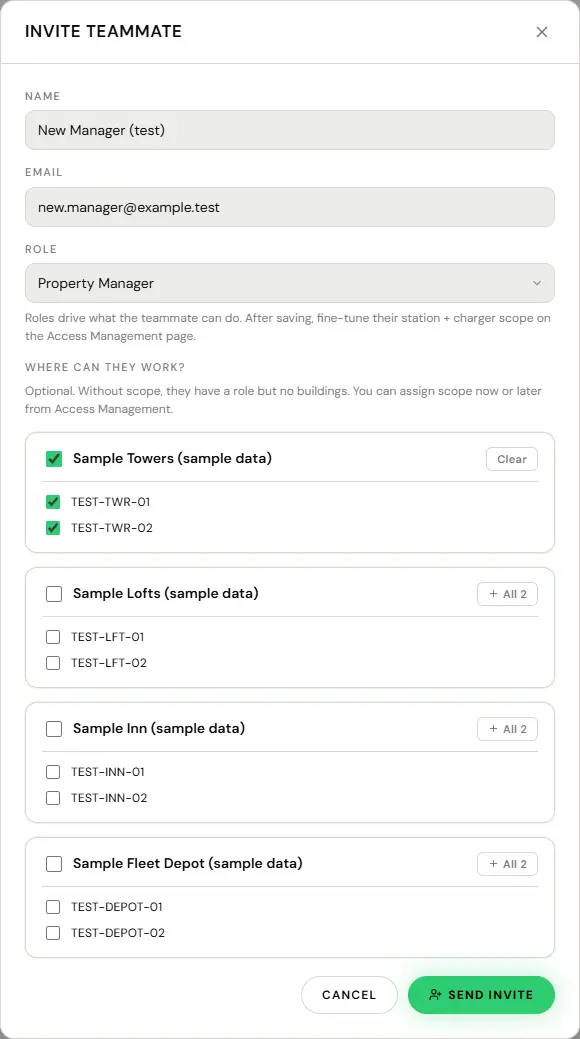
Invite teammate, as a Tenant Admin sees it: the role, then the stations and chargers the person can work at. Sample screen with test data. - Assign the actual locations or fleet. Have the recipient sign in with the intended email and verify their visible scope.
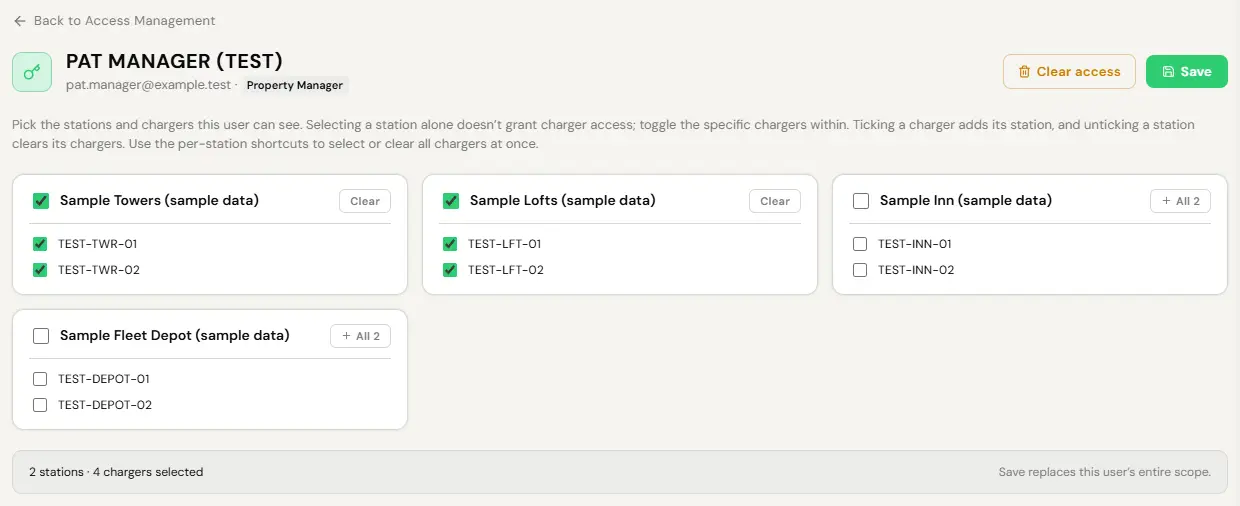
System → Access Management for one teammate, as a Tenant Admin sees it. Save replaces the teammate’s whole station and charger scope. Sample screen with test data. - Send the matching public guide from this collection. The guide link is not an account invitation and does not change access.
3. Prepare sites and new hardware
Confirm site names, addresses, coordinates, access types, physical charger identities and the accountable site contact. New hardware follows the commissioning workflow; preserve working legacy settings unless a migration is explicitly arranged.
Review before human launch
- Check the deployment’s evidence for authenticated connection, boot, heartbeat, each connector, plug-in behavior and completed energy-delivering app tests.
- Resolve the displayed launch blockers: coordinates, tariff and idle grace, access type, and location bank readiness where required.
- Have an authorized human approve launch in Admin. MCP can prepare a review brief; it cannot reveal credentials or approve launch.
- After launch, confirm a normal driver can see and use the intended plug under the correct access and price rules.
4. Separate the payment responsibilities
| Purpose | Account to confirm |
|---|---|
| Building electricity reimbursement | The location’s receiving entity and its location-specific Stripe setup. |
| Residential guest earnings | The homeowner/resident host’s own payout setup in the driver app. |
| Fleet charging and keyfob billing | The fleet’s billing arrangement, authorized payer and driver payment rule. |
| Sales Partner commissions | The Sales Partner’s own profile, terms and payout setup. |
The location bank account receives eligible electricity reimbursement, Site Share and legacy Revenue Share. Payments arrive in the location Stripe balance as each session settles. Bank deposits are scheduled weekly on Monday, subject to bank readiness and fund availability. The Site Host statement, on the site’s page, opened from Overview → Stations → Sites, lists each recorded transfer under Session transfers with its sessions, ledger currency, cash sent and conversion costs. Operator accounts see only the transfers paid to your own organization’s account. Transfers to a location’s own bank account are visible to that location’s Building Admin or Property Manager and to EV Initiative. A connected bank or recorded charging sales alone are not proof of payment.
Use current pricing and accepted terms for the account. Do not label lifetime charging sales or accumulated electricity costs as a personal payment or an outstanding balance.
5. Establish a simple routine
- Review Dashboard and charger connectivity within your scope.
- Use Reports for session/energy comparisons and keep date/location filters with exports.
- Check bank-verification requests and outstanding operational questions with the responsible recipient.
- Review new commissioning submissions and unresolved launch blockers.
- Review account and site assignments when staff, owners or installers change.
The remote MCP used by Warren is separate from customers’ Admin accounts. Giving someone an Admin role does not connect Claude, Codex or ChatGPT to the network for that person.
6. Hand over read-only access
A Viewer can use the dashboards and reports exposed by their role and scope. They cannot use that access to change pricing, issue credentials, connect a bank or operate hardware. Give them the sites, reporting periods and export expectations they need; name the operator who will handle requested changes.
Send support@evinitiative.com the site name, charger identity, affected plug, time and time zone, and the error you see. Leave passwords, sign-in codes, card numbers and bank details out of the message. For damaged equipment or an electrical fault, stop using it and contact the responsible installer.