 EV INITIATIVE
EV Initiative / Canadian homeowners & resident hosts
Home charging. Canadian setup.
Complete the home-host setup, then verify the Canadian location and any carbon-program registration with EVI. Charging income and carbon proceeds have different records and different timing.
1. Set up the charger and account
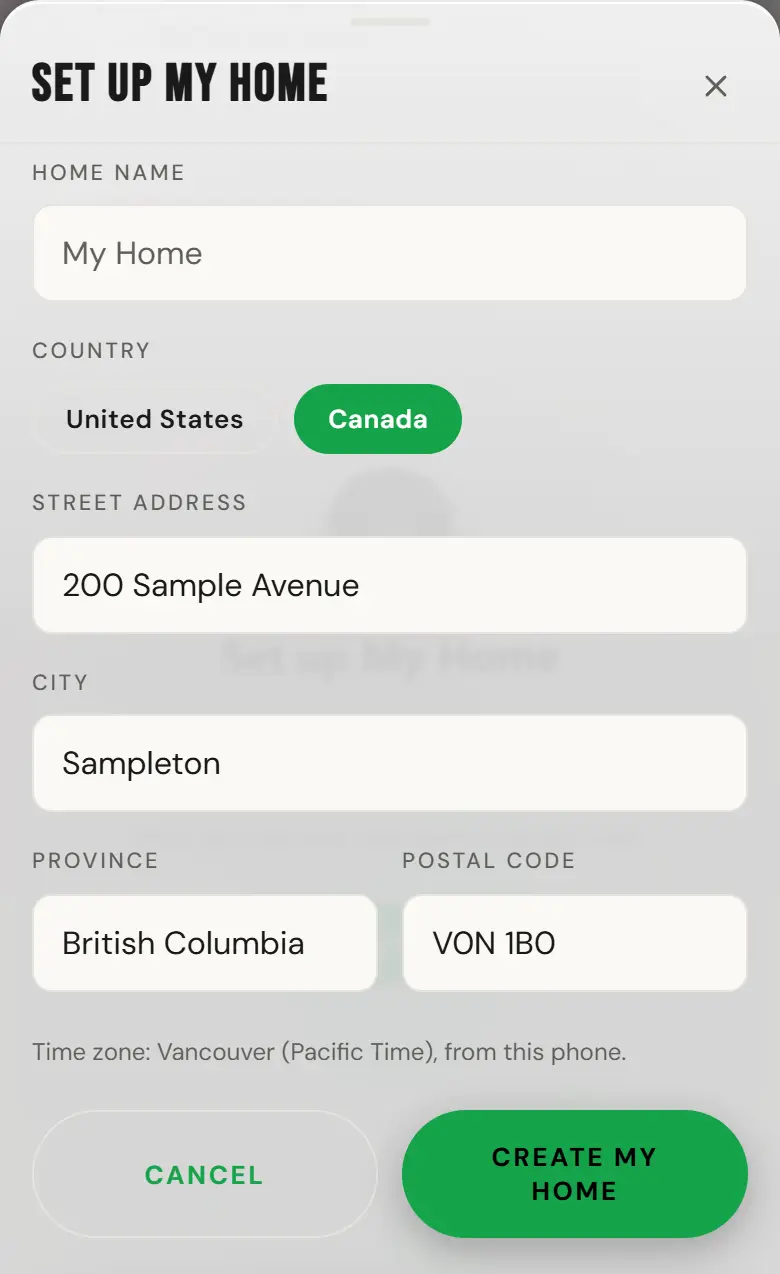
Follow the residential host guide for hardware handover, My Home or a building assignment, optional guest charging, access and a first successful session. In Set up My Home, choose Canada, then enter your real street address and city, pick your province from the list and type your postal code, like K1A 0B1. The app tidies the postal code into capitals with one space, and says so if its first letter usually belongs to another province. Your home takes its time zone from your phone; if your phone’s time zone is different from your address, the form asks which one your home uses. You can change the time zone later in Home Settings.
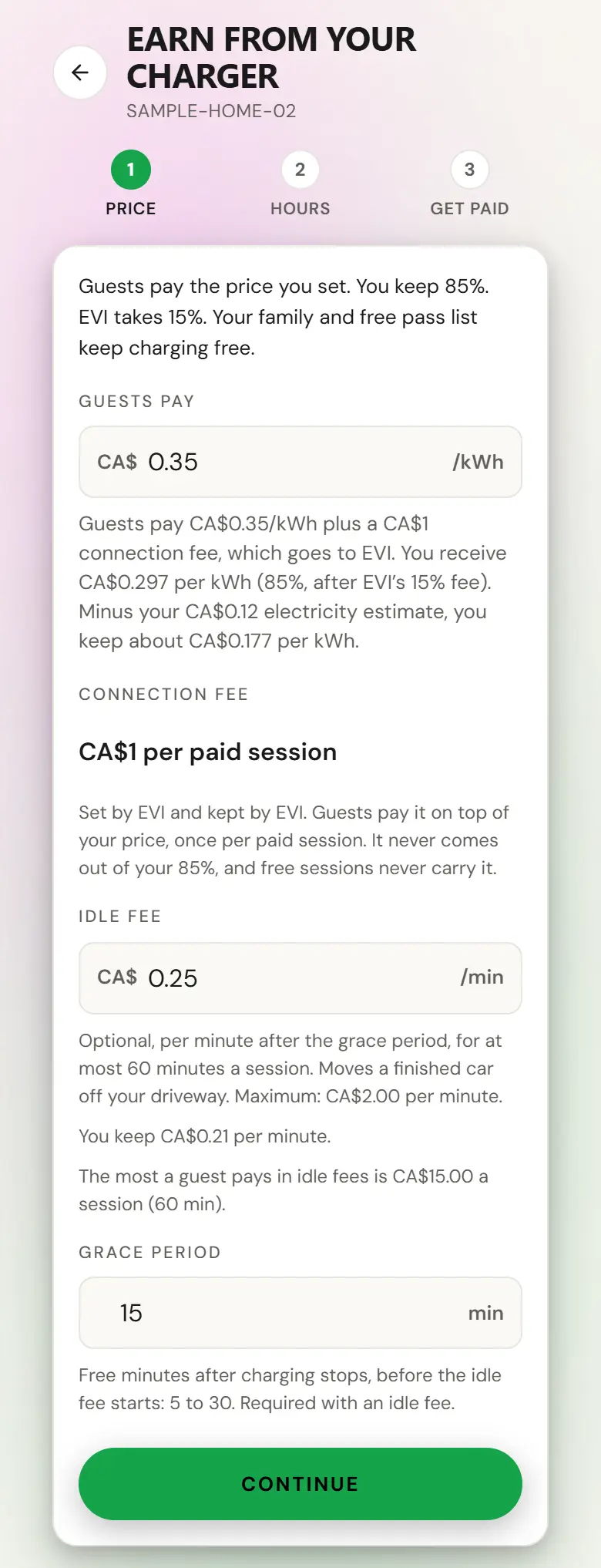
A home in Canada charges guests in Canadian dollars. When you set up guest charging, the Price step shows every amount in CA$, and your charger’s earnings are in CA$ too. If you set a guest price before Canadian dollar pricing arrived, the app says guests still pay in US dollars until you save the price again.
Do not open the charger to guests just to try to make a carbon balance appear. Guest access, charger ownership, carbon registration and payout readiness are separate parts of setup.
2. Confirm the location and program registration
Ask EVI to verify the unit
- Provide the charger identity, model, installation address and the person or entity that owns it.
- Ask EVI to confirm the charger’s surveyed location, applicable jurisdiction and carbon-program eligibility/registration. An address alone is not confirmation that the unit is registered.
- Review any applicable program terms or authorization presented for your charger. Ask EVI to resolve missing model or location information.
- Keep the charger connected so completed sessions and energy measurements can be recorded. Report a replaced meter, moved unit or ownership change to EVI.
3. Read the carbon states correctly
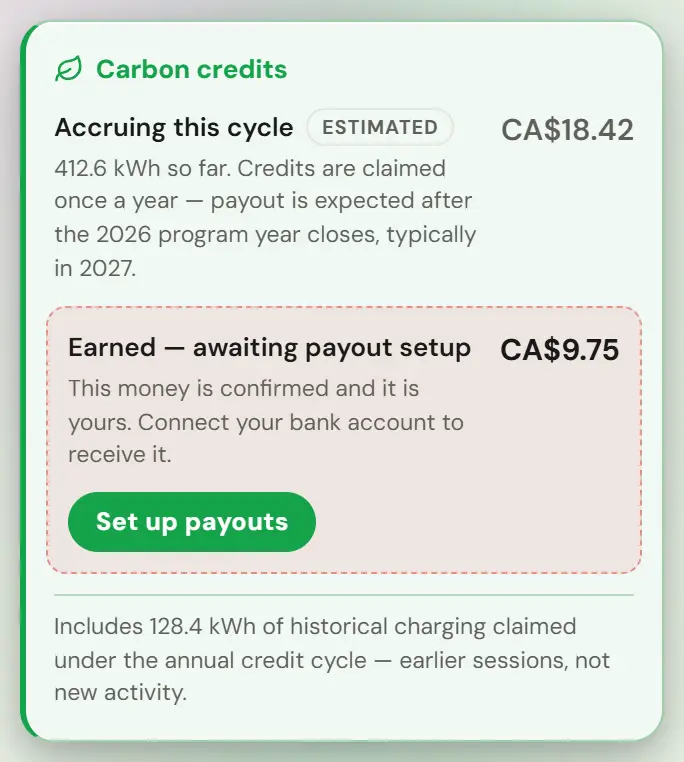
When your account has reportable carbon amounts, the charger’s Earnings view shows a separate carbon card. Read the currency label on each amount.
| State | How to read it |
|---|---|
| Accruing this cycle (Estimated) | Recorded activity valued as an estimate. It is not a confirmed or paid amount. |
| Confirmed | Confirmed proceeds with a recorded transfer to your bank account. Check bank settlement separately if you need to reconcile a deposit. |
| Earned, awaiting payout setup | Confirmed proceeds whose transfer has not completed. Follow the Set up payouts prompt or ask EVI about processing. If payouts are already set up, the same row says the money is on its way to your bank. |
Carbon claims follow the program’s claim cycle; they are not paid after every charging session. Use the window shown in the app and ask EVI about the specific claim or batch. Do not combine CAD and USD totals or treat historical activity as newly earned cash.
4. Finish the payout setup that applies
Complete the Stripe flow linked to your own host account when requested. If confirmed carbon proceeds are waiting for payout setup, use Set up payouts on the carbon card in Earnings and return to check the status. A building’s location bank account is a different recipient account.
Before Stripe opens, the app asks for your Bank account country. Choose Canada if your bank account is in Canada, then tick My bank account is in Canada. Stripe can’t change the country after setup. If the app says your home and your bank account are in different countries, check before you continue. If a payout account already exists in the wrong country, contact support; it cannot be changed in the app. Guests can’t pay at your charger until Stripe setup is complete.
If the carbon card is empty
An empty card can mean there is no reportable balance yet. Ask EVI to check ownership attribution, the charger’s coordinates and registration, eligible recorded sessions, and the claim state. Do not assume every Canadian charger or every session automatically produces payable credits.
Send support@evinitiative.com the site name, charger identity, affected plug, time and time zone, and the error you see. Leave passwords, sign-in codes, card numbers and bank details out of the message. For damaged equipment or an electrical fault, stop using it and contact the responsible installer.